Manta Ray – eLearning Course
Click on the graphic below to launch the
training course in a new browser tab!
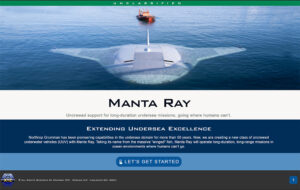
Most of the training materials I’ve created have distribution restrictions that prevent me from sharing or displaying that content publicly. So what I’ve created is a fully open source, eLearning module on a subject that I find interesting – the Uncrewed, Underwater Vehicle (UUV) called the Manta Ray. I pulled info, graphics and video content from multiple sources to create a fairly comprehensive training scenario, similar to what I would produce for my day job.
The development tool that I use and have become an advanced user of is called Adobe Captivate. In the past year Adobe has released an entirely new version of Captivate, which was rebuilt from the bottom up. The training course I’ve developed for the Manta Ray UUV incorporates a significant array of the new features and display solutions from the new version of Captivate. I tried to include every display type, widget and visual component of the software. This build was created both to personally learn what is possible, as well as to create an example that my team and coworkers can use to expand on my initial learning.
Development Knowledge Capture
Linked below is what I call a knowledge capture. This document will communicate to the implications and decision making points that are required to create a course and there’s a lot to think about! I put this document together to try and share my knowledge and experience learning how to use all of the features in the NEW Adobe Captivate, as well as capturing some of my general knowledge for curriculum development.
Project Files
Download the entire project and all supporting documents. This link will be updated with each new addition to the project.
3D Printing – eLearning Course
Click on the graphic below to launch the
training course in a new browser tab!
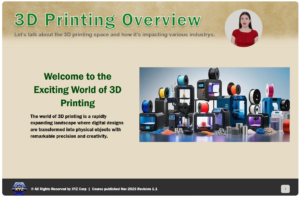
Adobe Captivate offers a rich set of authoring tools that bring online training to life, and in your 3D printing course, these features help create an engaging and learner-centered experience. One of the standout capabilities is the use of avatars—customized animated characters that guide learners through the material with voiceover, gestures, and on-screen cues. These avatars make complex technical topics like printer types, slicer settings, and material selection more accessible by adding personality and visual context to instructional content. Additionally, Captivate’s two-party discussion simulations allow the course to present conversations between characters (such as an expert and a learner) to illustrate common questions and real-world scenarios, helping learners understand how concepts are applied in practice rather than just in theory.
Another powerful feature of Adobe Captivate used in this course is its support for interactive video with breakout content, which transforms passive watching into active participation. Interactive video segments can pause at key moments to ask questions, provide clickable hotspots, or launch related activities that reinforce learning—such as mini quizzes, drag-and-drop exercises, or decision-making scenarios about printer settings. Breakout content enables learners to explore topics at their own pace, zoom into deeper explanations, and apply what they’ve learned before returning to the main video narrative. Together, these Captivate features create a dynamic learning environment that enhances retention, builds practical skills, and makes the 3D printing training both informative and engaging.
Project Files
Download the entire project and all supporting documents. This link will be updated with each new addition to the project.
Adobe Captivate – Official Documentation
The most reliable and comprehensive resource for learning how to use Adobe Captivate is the official Adobe Captivate User Guide, available at https://helpx.adobe.com/captivate/user-guide.html. This guide is maintained directly by Adobe, ensuring that all information is accurate, up to date, and aligned with the latest version of the software. It provides step-by-step instructions, detailed explanations of features, troubleshooting tips, and best practices for creating engaging eLearning content. By using the official user guide, learners can avoid outdated or incorrect information often found in unofficial sources and gain a deeper, more efficient understanding of Captivate’s capabilities straight from the experts who built it.


Resources to assist in development from concept to delivery
Capturing, standardizing, and continually improving design templates, development processes, and stakeholder intake forms is essential for producing high-quality training materials consistently and efficiently. By formalizing the steps required to move a project from concept through execution—supported by official Adobe Captivate documentation—organizations create a repeatable, reliable framework that reduces ambiguity and rework. Well-defined templates ensure visual and functional consistency, streamlined workflows help teams collaborate more effectively, and structured intake forms collect the critical requirements needed to launch each project with clarity and purpose. Over time, analyzing and refining these elements leads to a cycle of continuous improvement, enabling training teams to deliver polished, professional, and instructionally sound learning experiences that reflect both best practices and the organization’s evolving needs.
Course Design Templates
There are numerous ways to create effective training and some types of content are presented better using different techniques. As I create them, I will be adding course design templates below. These templates will describe various content presentation methods that can be leveraged to quickly build training material.
- Widget – Carousel (PDF)
Design Process
Understanding how to build individual components in Captivate, as well having a firm understanding of the inputs require from stakeholders will be essential. I’ve created the first of many process and intake forms that can be used to formalize the pre-creation design discussion. These process and intake forms are based off of the Official Adobe Captivate online documentation.
Carousel Widget
Additional Training Resources That I’m Working On…
PowerPoint Import
With Adobe Captivate 13, you can now import Microsoft PowerPoint decks seamlessly—animations, layouts and text come in ready for editing so you can convert a presentation into a full-blown eLearning module.
Software Simulation
Enhanced software simulation tools now support full-motion recording, demo/training/assessment modes and editable highlights/click areas so you can build polished step-by-step guided simulations.
Other Graphic Design & Training Development Resources
Professional growth is often built through the steady accumulation of knowledge gained by solving small problems across many projects, with each challenge contributing a new piece to a broader foundation of expertise. Through trial and error, practitioners learn what works, what doesn’t, and why—developing instincts and solutions that can only come from hands-on experience. Over time, these incremental lessons compound, enabling individuals to work more efficiently, anticipate obstacles, and approach complex tasks with confidence. This continual cycle of learning transforms everyday problem-solving into long-term professional development, ultimately shaping more capable, adaptable, and insightful experts in their field. The resources below are my attempt at capturing and sharing information that I’ve learned over 30 years doing graphic design and project management.
Graphic Best Practices
When do you use a JPG verses a PNG graphic or even a SVG graphic? Which Adobe software do you use to create and optimize graphics of various types? This document describes the pros, cons and software required to create each type of graphic. This is a collection of knowledge gathered over a few decades of trail and error.

